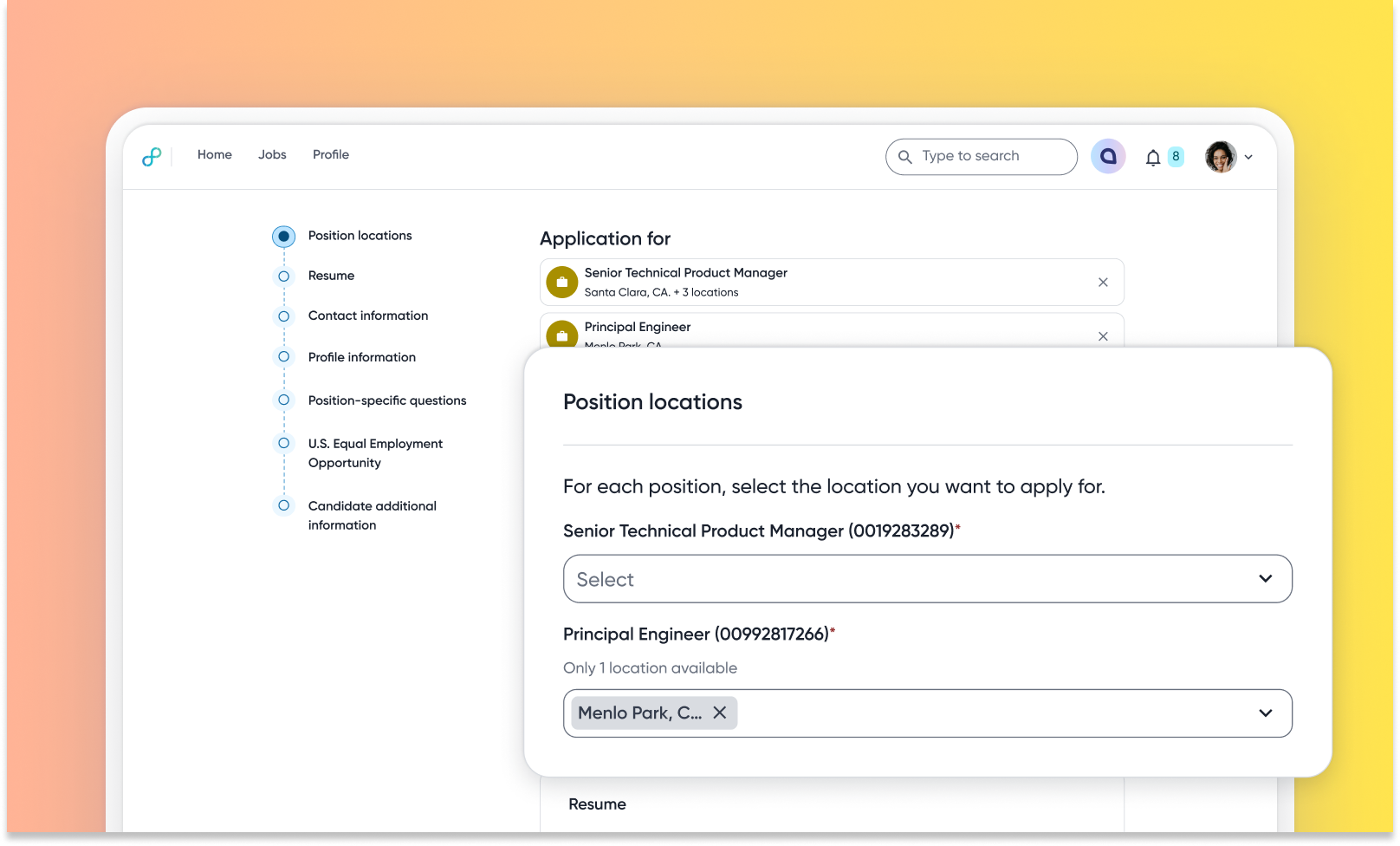
Select preferred position location in application form
Default Off
Self-service
This enhancement enables candidates to select their preferred locations when applying for positions, which are posted in multiple locations. If configured, candidates can also view questions that are relevant based on their selected location’s country. This improves the application experience and provides recruiters with clearer location preferences.
Users
Candidates
Requirements
Career Site Experience IX enabled
Needs addressed
Previously, the apply form lacked a way for candidates to indicate their desired location for multi-location positions.
The apply form now includes a position location question where candidates can select one or more locations they're applying for. Based on this selection, only location-specific questions relevant to the chosen location(s) are displayed. For single-location positions, the location may be pre-filled.
This feature is expected to improve the candidate experience by making the application process more relevant and efficient. It should also provide recruiters with clear insights into candidate location preferences, improving the quality of hire.
Impact on existing workflows
If enabled, the application form now includes an additional question for candidates, where they select their preferred location(s).
Recruiters will see the candidate's location choice as part of their application answers in TA.
Note: No automatic action is taken on the candidate's profile based on their response. It is only displayed to the recruiter as an application answer in TA.When "Remote" is selected, no location-specific questions are displayed.
This feature requires unique IDs for all questions.
Initial setup
To configure this feature, see this video.
This video includes the following configuration steps:
Navigate to Admin Console > Talent Experience (PCS) > PCS IX > Configuration > Application Flow.
Under General Apply Settings, go to Application Questions > Position location.
Turn on the Position location picking enabled toggle switch.
Click Save.
