- DATE:
- AUTHOR:
- The Eightfold team
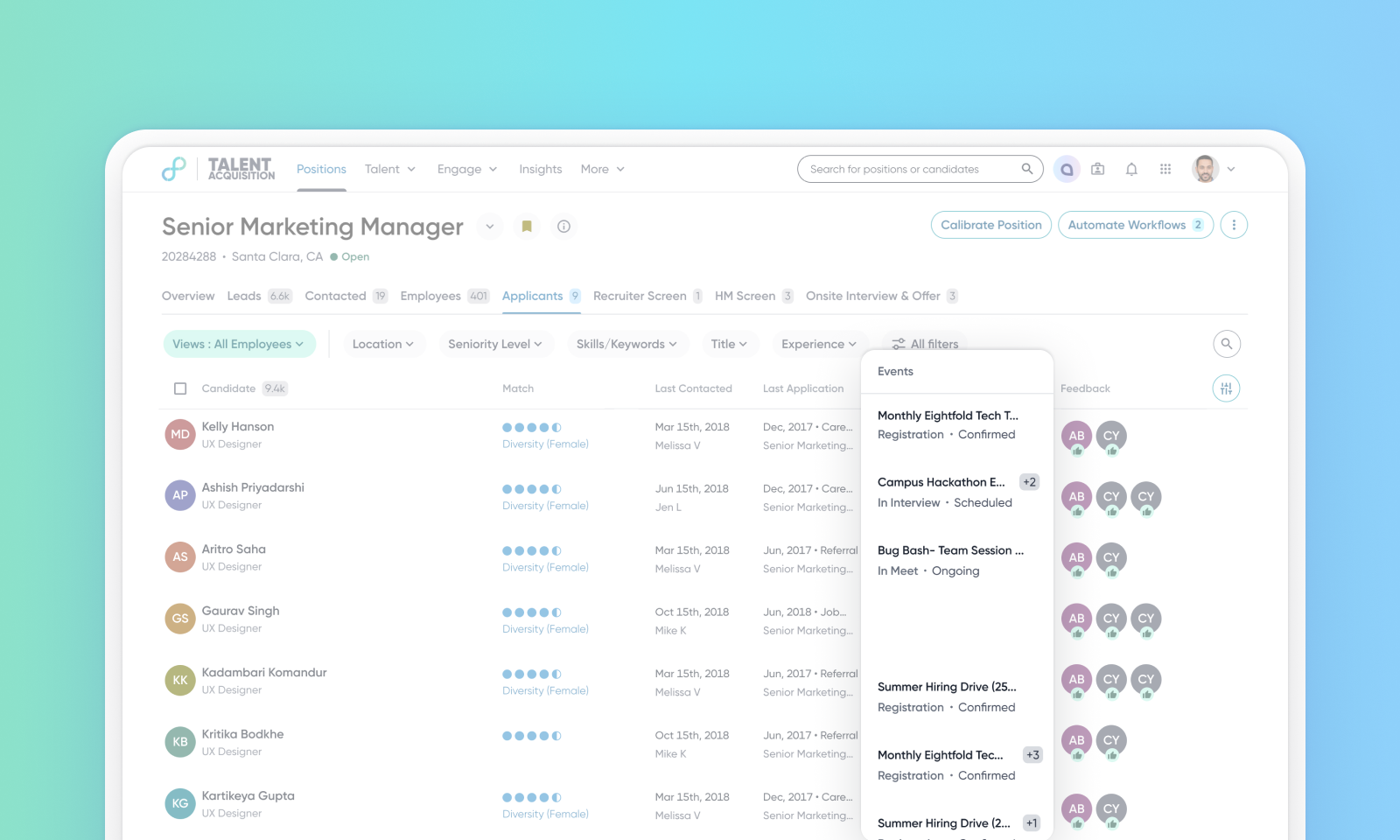
Expanded visibility of candidate activity across all pipelines
Default off
Self-service
This feature introduces a new, configurable column in the candidate workflow views, such as Position, Event, Community, and Demand pipelines. This column provides immediate visibility into a candidate's most recent stage in other recruitment pipelines. By consolidating cross-pipeline data, recruiters can make informed decisions quickly without navigating away from the workflow.
This column automatically filters specific pipeline statuses to ensure accuracy and relevance: Positions, Events, Communities, and Demands.
If a candidate has no activity in any other pipeline, the column will display as empty.

Users
Recruiters, Hiring Managers
Value
Recruiters currently lack visibility into a candidate's stages in other pipelines. This necessitates manually reviewing each candidate’s profile to determine their status across Positions, Events, and Communities. This manual effort leads to complications such as multiple recruiters contacting the same candidate with incomplete information, resulting in a negative candidate experience.
This feature introduces a configurable column that displays a consolidated view of candidate stages in other pipelines.
The Pipeline Activity column automatically shows the pipeline with the candidate's latest stage in that pipeline. Users can hover over the column entry to view a detailed card listing all active pipelines of the configured type. This reduces the time required to access other pipeline information.
With this enhancement, users may notice the following benefits:
Reduced occurrence of multiple recruiters contacting candidates.
Reduction in time accessing other pipeline information.
Improved productivity and faster decision-making.
Impact on existing workflows
The system filters long pipeline names by truncating them with an ellipsis (...) to maintain layout integrity. The full name is visible on hover.
Initial setup
To configure activity columns, follow these steps:
Go to the Workflow section of an Event/Position/Community/Demand pipeline within the Admin Console.
Click Fields or Columns.
Select one of the following options in the Name dropdown:
position_application_activities
community_application_activities
demand_application_activities
event_application_activities
Configure the remaining fields as per requirements.
