Guide-level proctoring
WHAT'S INCLUDED
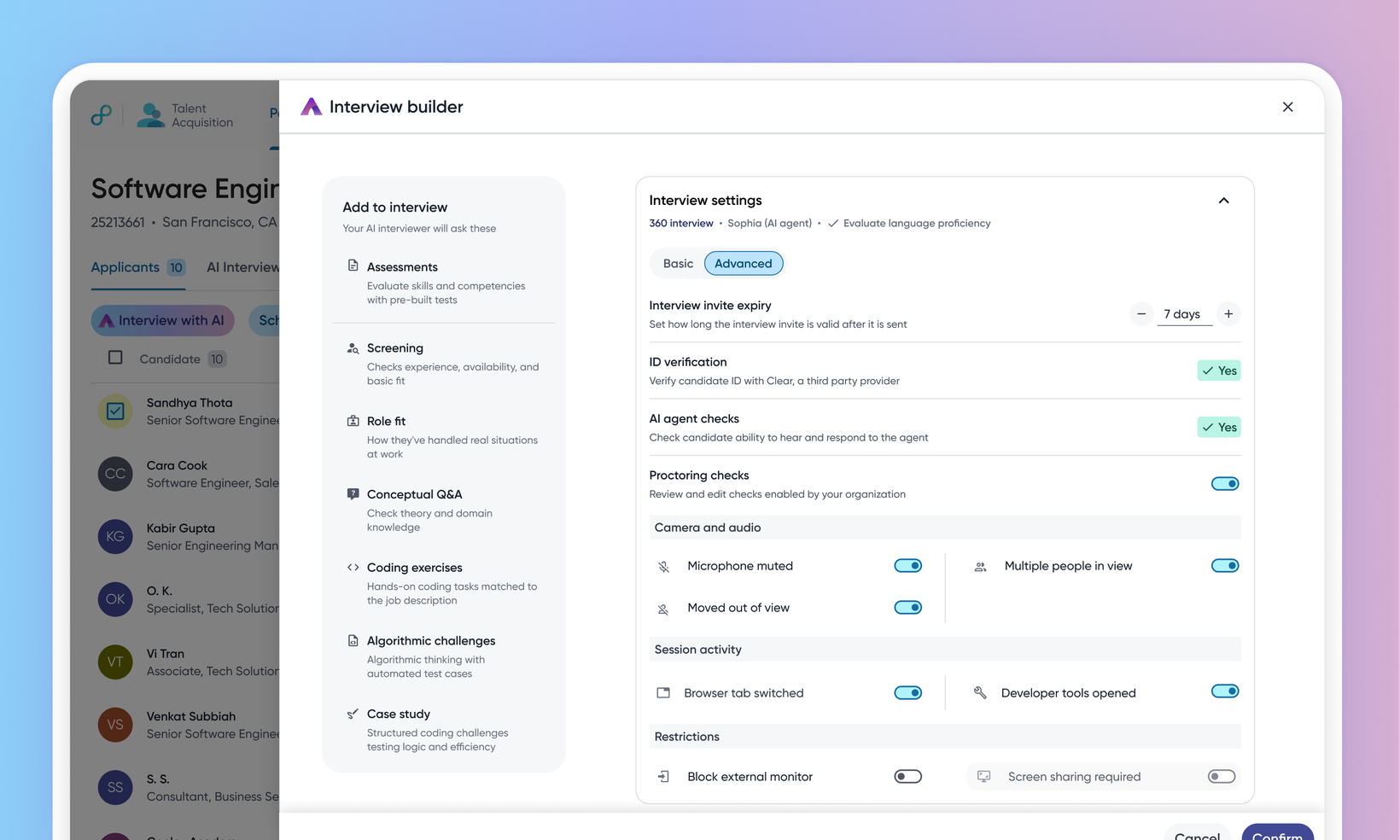
Proctoring for AI interviews used to be configured once per tenant and applied identically to every interview. That's too coarse — a senior, conversational round rarely needs the same strict checks as a timed coding screen. Guide-level proctoring lets a recruiter set proctoring per interview guide for modular AI interviews: which checks run, which candidate-side blocking applies, and whether candidates see real-time alerts. Guide settings work within the admin-defined tenant baseline, and lock in when an interview is scheduled.
WHY IT MATTERS
Different modular interviews call for different rigor — dial proctoring up for a timed coding screen or down for a conversational round, instead of one tenant-wide setup.
Guides stay within your organization's policy: a guide can turn an allowed check off, but can't enable a check the admin hasn't allowed.
Settings lock in when an interview is scheduled, so each interview runs exactly the proctoring it was set up with — later guide edits apply only to future interviews.
FEATURE DETAILS
Who can access | Recruiters, Customer Admins, Interviewers, Hiring Managers |
Feature type | Default On |
Requirements | AI Interview proctoring configured at the tenant level. Modular AI interviews in use. Edit interview guide permission for guide owners. |
GETTING STARTED
Admins: Set the tenant baseline in Admin Console ▸ Product Setup ▸ AI Agents ▸ Proctoring checks — enable the checks your organization allows and, for each, choose Turn on candidate alert or Turn on blocking and candidate alert. Then, on a modular interview guide, open Interview builder ▸ Interview settings ▸ Advanced ▸ Proctoring checks, toggle the checks for that interview, set Enable blocking where offered, use Disable candidate alerts if needed, and select Confirm.
End users: Candidates take the interview as usual. Enabled checks run during the interview; blocking checks (fullscreen, copy and paste, keyboard shortcuts) can pause or restrict the session, and candidates see real-time alerts unless the guide disables them. Reviewers see anything detected under Flagged activities in the interview feedback view.
To know more, read Guide-level proctoring.
Links
