Talent Hub UI Improvements
WHAT'S INCLUDED
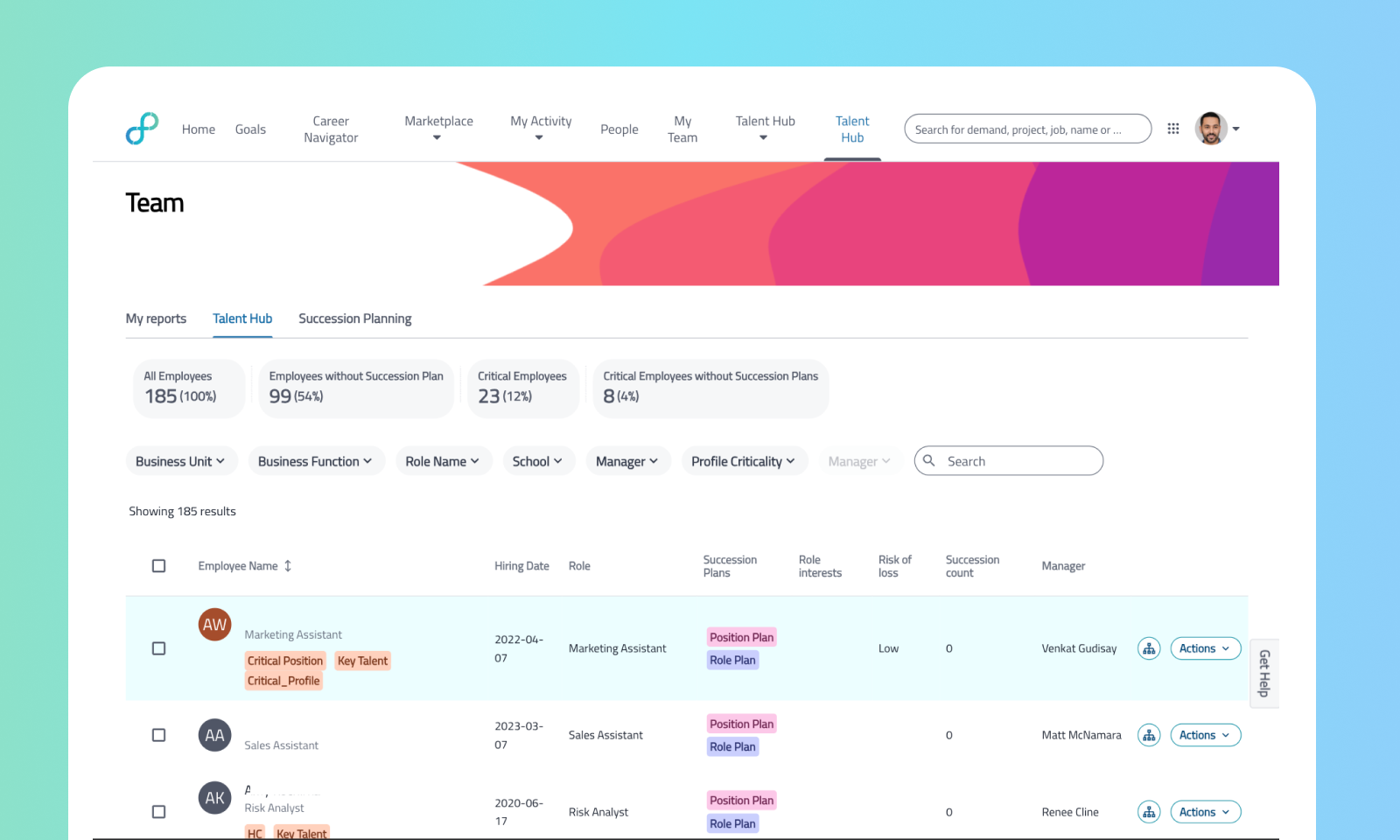
The Talent Hub tab (My Team > Talent Hub) previously showed a flat employee list, with no metrics and no way to filter on them, unlike the Succession Planning tab, which already had clickable stat filters. This release adds the same configurable stats bar to Talent Hub: Total Employees, Critical Employees, Employees without Succession Plans, and Critical Employees without Succession Plans (each shown with its % of the relevant total). Each stat has a clickable filter, and select stats can be inverted (e.g. toggle "Employees without Succession Plans" to "Employees with Succession Plans") to see either side of a gap. The stats bar has also been rebuilt to work reliably on mobile and with screen readers/keyboard navigation.
WHY IT MATTERS
HRBPs can spot which employees still need succession plans without manually scanning the employee list
Inverted filters let HRBPs pivot between "who's covered" and "who's missing" in one click, the same pattern already familiar from Succession Planning
Admins can define which stats appear via Product Setup, without needing configuration changes
The stats bar now works reliably on mobile and is accessible via screen reader and keyboard navigation.
FEATURE DETAILS
Who can access | HR Business Partners (HRBPs) using the Talent Hub tab under My Team; stats are configured by Admins. |
Feature type | Default Off (Self-service) |
Requirements | Mirrors data already displayed in Succession Planning (critical employee designation, succession plan status). Customers should already have Succession Planning / critical employee data in place |
GETTING STARTED
Admins: Define which stats appear and in what order via Admin Console > Product Setup > Talent Hub, or directly in the stats_bar config stats_def / stats_order) under Talent Hub in Form Based UI. Read Configure Talent Hub stats bar for more information.
End users: On My Team > Talent Hub, the configured stats appear above the employee list. Click any stat to filter to that group, and use the invert toggle (where available) to see the opposite view.
