- DATE:
- AUTHOR:
- The Eightfold team
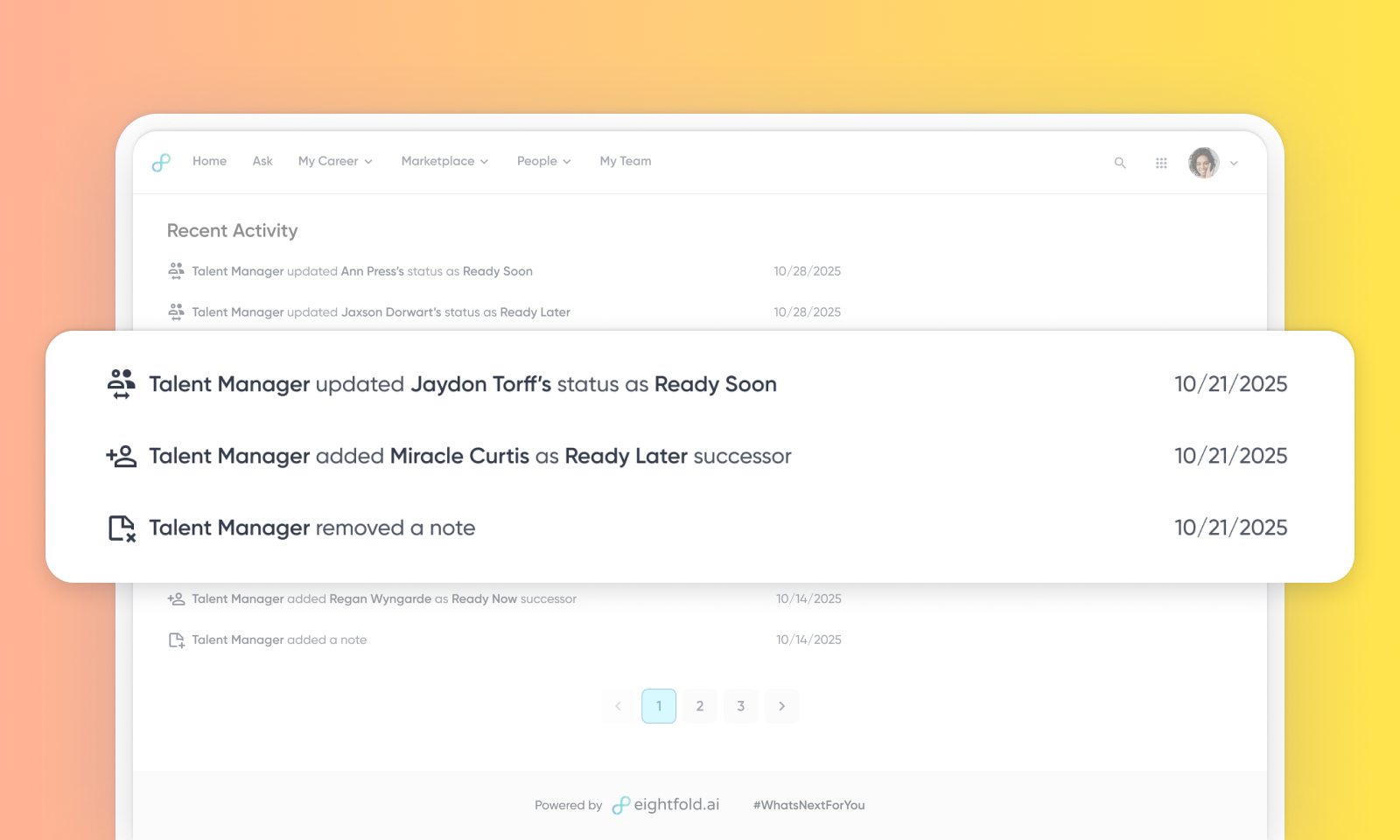
Recent activity log for changes made in Succession Planning
Default on
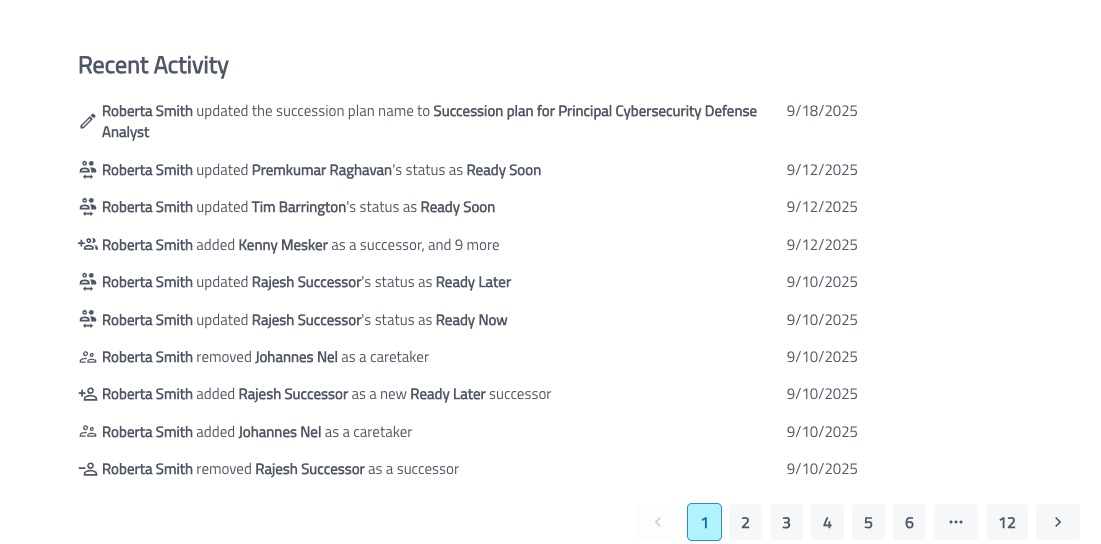
This new feature introduces a comprehensive activity log for all activities within a succession plan, providing enhanced transparency and traceability. This ensures that HR Business Partners (HRBPs) and other stakeholders have a clear record of all changes, improving accountability and data integrity.
Before:
After:
Users
HRBPs and Manager
Value
Previously, there was no automated way to track who made changes to a succession plan, when those changes occurred, or what specific actions were taken. This made it difficult to maintain accountability and understand the evolution of succession plans.
HRBPs often resorted to manual methods to track changes, which were prone to errors and time-consuming. The new activity log automates this process, eliminating manual effort and ensuring accurate records.
For more details on this feature, read Succession Planning: Activity Logging Feature.
Impact on existing workflows
Enabling the Feature: To enable this feature, administrators need to navigate to the "Talent Management" section, then "Succession Planning," and finally the "Advanced" section within the Admin Console. Here, the relevant feature needs to be set to "true".
Visibility of Activities: Once enabled, all activities performed on a succession plan will be visible at the bottom of the plan's details page under "Recent Activity".
Logged Actions: The activity log will record actions such as:
Who created the succession plan.
Who added a person to the plan (e.g., "added Lavina Tuer a new Ready Later successor").
Who removed a person from the plan.
Editing the plan's description.
Updating the position's criticality.
When a user (e.g., HRBP or Manager) updates the Role Criticality, a log entry is created.
Activity log Data Retention is now configurable via the audit_log_retention_days integer parameter located in Career Hub Base Config > Employee > Team Planning > Succession Config. By default, activity log data is retained indefinitely; setting this parameter specifies the number of days after which an older activity log will be permanently deleted.
Initial setup
This feature will be available to customers by default. Customers don't need to do anything to see this change in their Eightfold environment by the sandbox and GA dates.
To disable activity logs, follow these steps:
Navigate to Admin Console > Talent Management > Succession Planning > Manage Plan.
Click UI Configuration.
Toggle Hide Audit Log to on.
Click Save.
