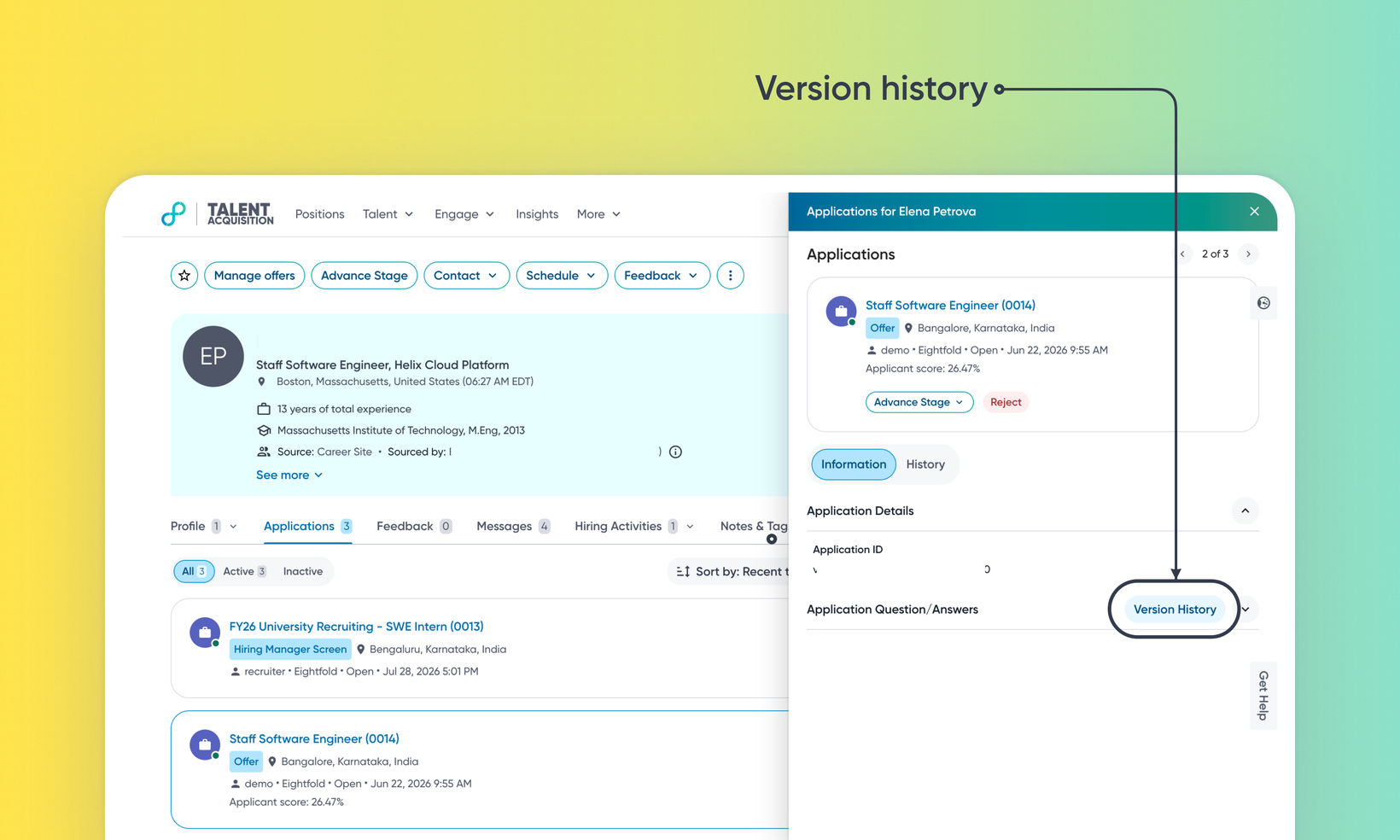
Edit and audit application question responses
WHAT'S INCLUDED
Recruiters and admins can edit Application Q&A directly on the candidate's profile record in Eightfold, and every edit is logged as a version.
A new Version History panel tracks every Q&A edit, replacing silent overwrites with detailed diffs (showing what changed, by whom, and when) and a full-form Preview of the candidate's answers at that point in time. The original submission remains permanently available at the bottom of the version history. If a Q&A hasn't been edited yet, no versions exist, so the Version History button stays disabled until the first edit is made.
Certain question types — file upload and dependent/conditional questions — are currently uneditable in this release.
WHY IT MATTERS
Recruiters and admins get a complete, tamper-evident record of every change to a candidate's answers — meeting the audit expectations of an enterprise ATS.
Recruiters and admins can always see a candidate's original submission alongside every edit made since, with nothing lost from the historical record.
FEATURE DETAILS
Who can access | Set permission to Admins, Recruiters and Hiring Managers via Permission & Roles config. Available to Talent Acquisition (T2) customers; |
Feature type | Default On (Non-deferrable) |
Requirements | Edit access is controlled by a permission that an admin must assign. Pipeline & Workflow action buttons are optional — they're an alternative way to edit from the pipeline view. Version tracking is on by default and creates a version automatically whenever an edit is made. |
GETTING STARTED
Admins: Confirm the Edit application answers permission is assigned under Admin Console → Users & Permissions → Permission & Roles. To optionally add "Edit Application Answers" action buttons to specific pipeline stages, configure them under Admin Console → Talent Tracking → Pipeline → Pipeline & Workflow. To know more, read Application QnA Editing and Audit Trail.
End users: The primary way to edit a candidate's application answers is from their profile: open the profile, click Edit Profile, go to the Application tab, open the application, then navigate to Question/Answers and click Edit. Alternatively, on a position's pipeline, you can select the candidates and click Edit Application Answers in the toolbar.
Only the fields you change are updated — click Save to confirm. To review an answer's edit history, open the candidate's application, go to Application Question/Answers, and click Version History — use the Version dropdown to step through every prior edit (timestamp + editor shown) and the candidate's original submission, and click Preview on any version for the full set of answers and applicant score at that point in time. No version is created unless an edit is actually made.
